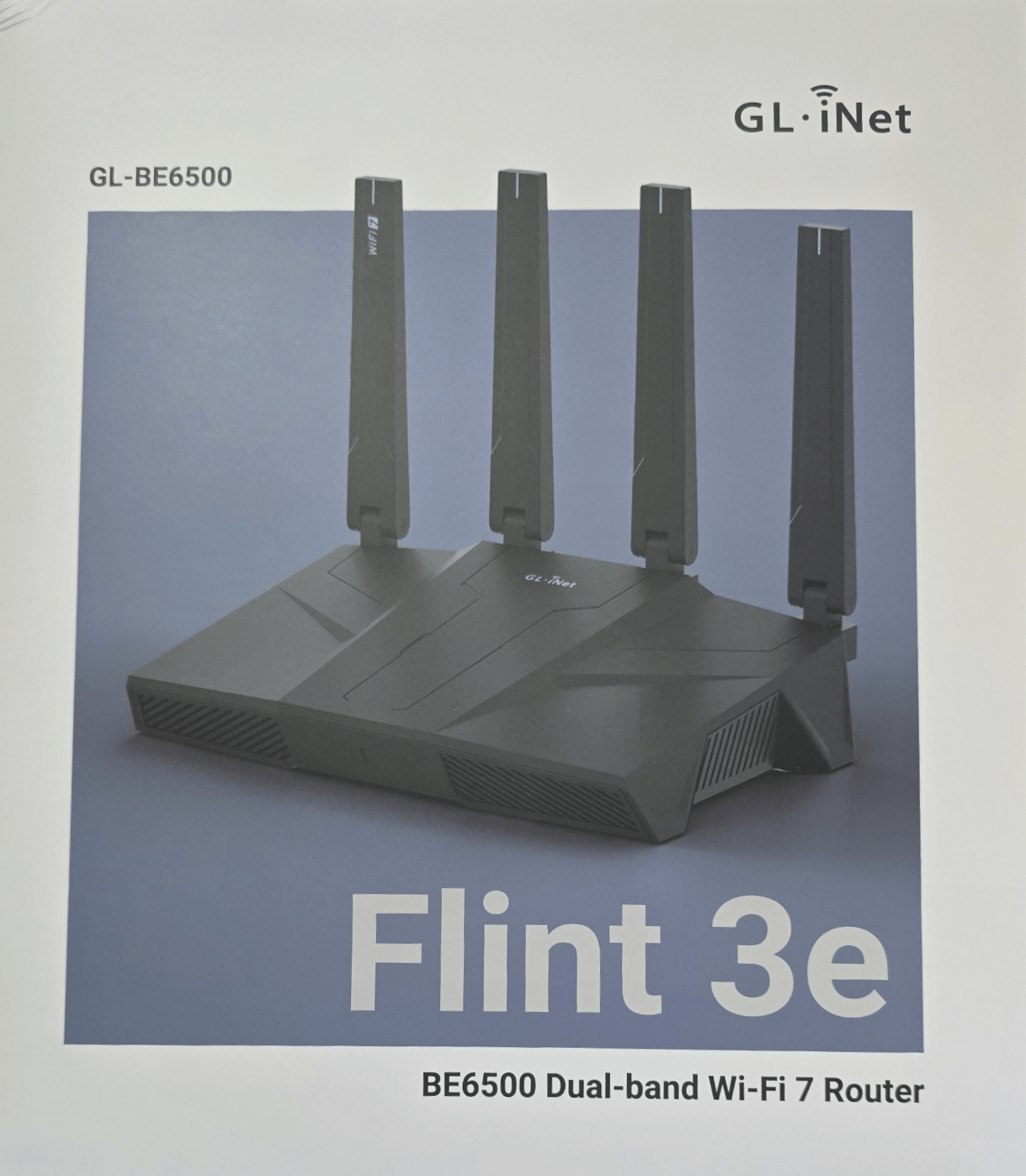
Through various communication and courier errors it has taken some time for my Flint 3e router to arrive but here it is at last. I have a pair of Flint routers (the originals) which offer WiFi 6 and I can definitely vouch that they have better range than WiFi 5 – I’ve now disconnected my last WiFi 5 router – I could only find one sensor that would not work with WiFi 6 (regular readers may recall that Aqara owned up that the FP2 sensor would not work on WiFi 6 – near the bottom of this blog entry) so I guess the challenge now is to see if any sensors fail to work with WiFi 7 as per the Flint 3e. I’m certainly excited to try out the new router which looks remarkably like it’s predecessors.
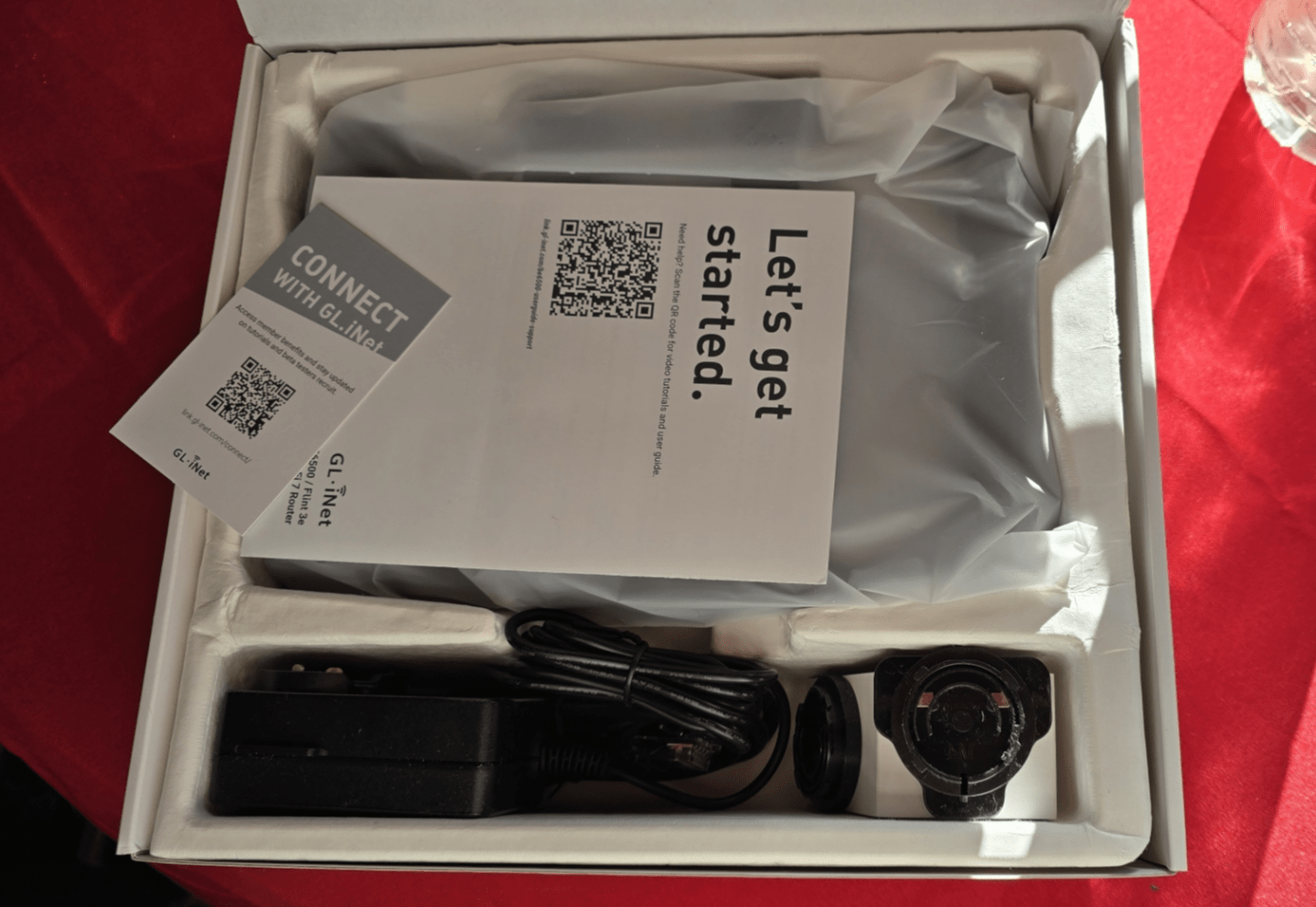
In the box – router, power adaptor, ethernet cable, user manual (but as with all GL-iNet kit I expect there will be a TON of info online as well). You get both EU and UK mains adaptors, a short ethernet lead for testing and a 12v power supply.
There is a GL-iNet app available on the Apple and Google Playstores but I’m more than happy with their web interface – simple but powerful and for the more experienced/masochistic, there is below the pretty interface, easy access to OpenWrt and hence the LUCI interface. These days I rarely go down to that level as the GL-iNet interface is both powerful and friendly.
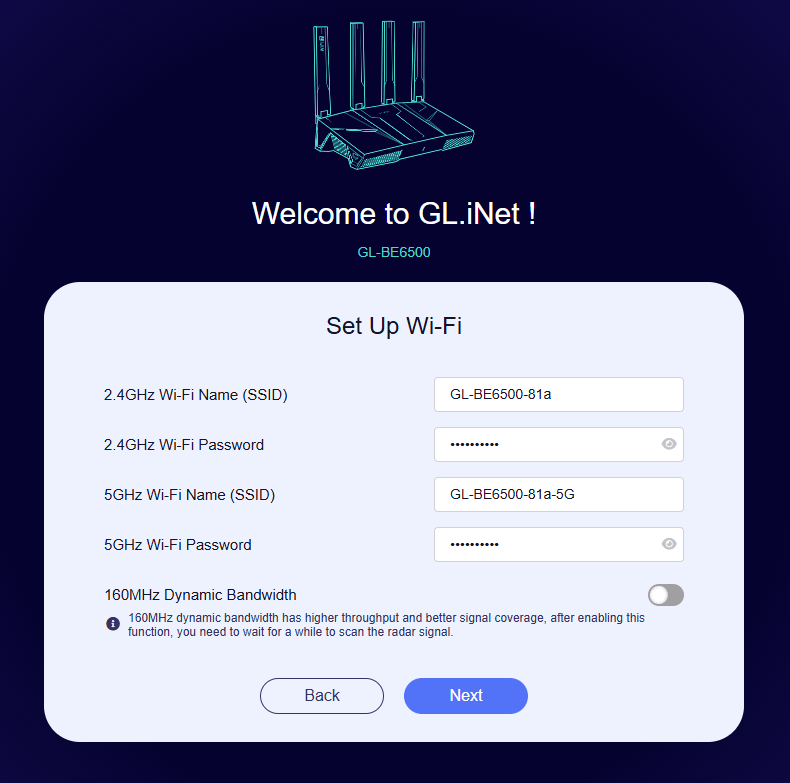
So, out of the box, router WAN connector plugged into my network, power supply connected…. 2 new access points have appeared on my PC – GL-BE6500-81a and GL-BE6500-81a-5G
I’ve hooked up the PC to the second of the two… got to use the password printed on the underside of the router (I preferred it when they defaulted to GOODLIFE – now I have to get off my seat to check) and now I see a setup page magically appear in my browser… asking for a new admin password. Done. And now it wants me to set up WiFi.. Oh this is new – I’m also given the option to set up 160Mhz dynamic bandwidth for better signal coverage !!! Ok I’ll have that.
and just like that – hooked into the familiar GL-iNet user interface.
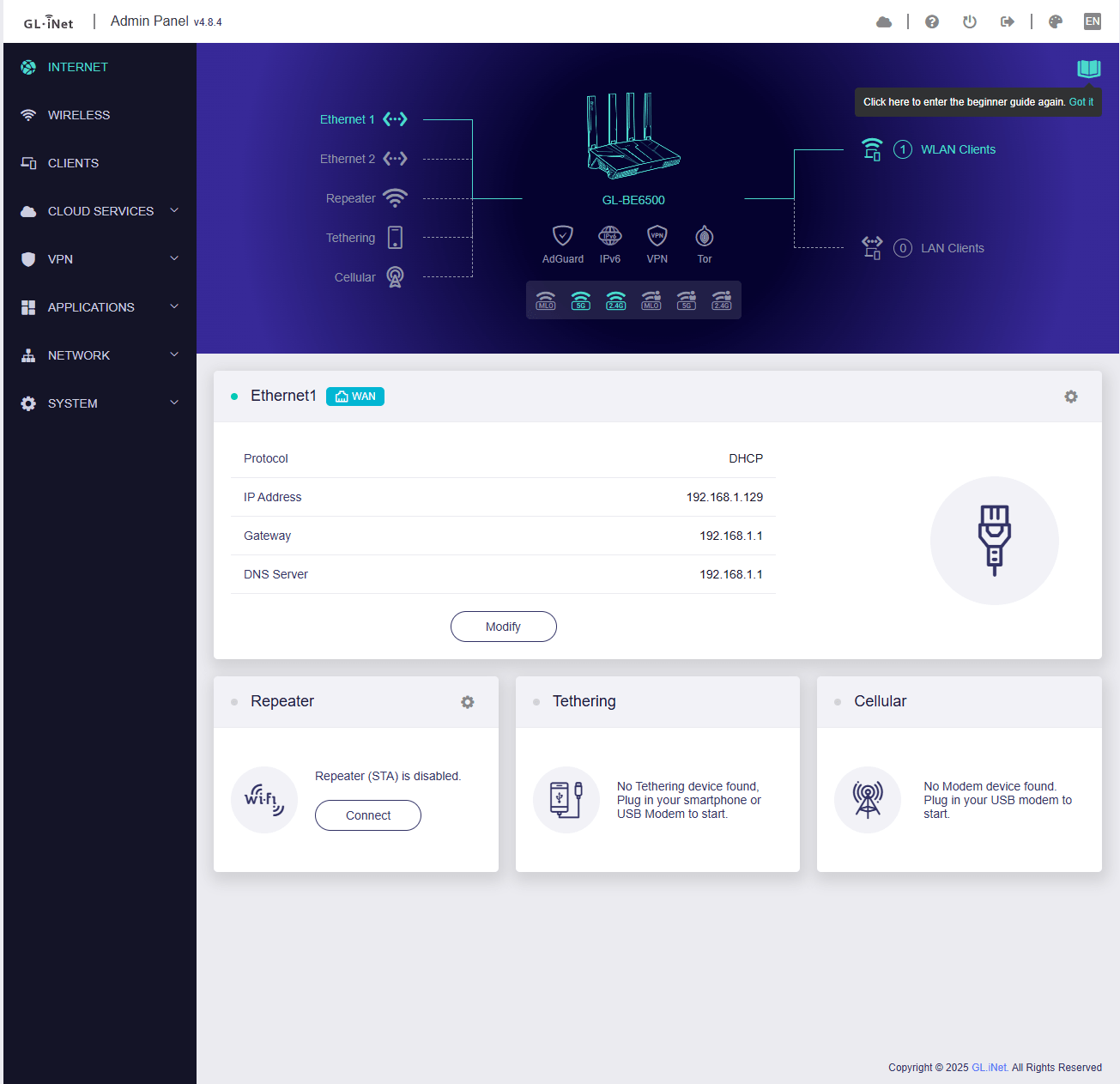
Interestingly – the firmware is v4.8.7 and up to date. My original Flint says that IT is up to date on v4.8.3
Under ADVANCED… “Modify advanced settings with LuCI – install now”.. I’ve no immediate use for it but I may as well have that. Done.
And what a difference – the 5G signal coming into my office around several rock wall corners is LOVELY. Just to put you in the picture, I could have made this my main router – but I’m happy for this to extend my network, I simply turned off DHCP and set the address to a fixed address in my network.
I’ve gone from having an iffy WiFi here in my secluded office, while placing the router only a metre closer than my original Flint router and I now have a rock solid WIFI in the office – and without any placement experimenting -I’m getting the following:
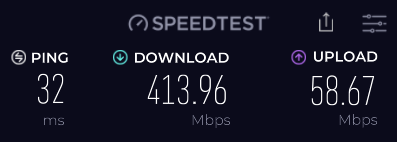
For now this will do, soon I’ll get far more ambitious (and update the blog accordingly) – look at my review of the original Flint and how it is set up with Tailscale – because GL-iNet are consistent, the setup will be pretty much the same – Tailscale is built into the Flint 7e along with various other VPNs. This speed could save me from having to bring a router into my office – not that easy as our home is a cavehome – hence no flat ceilings to easily hide wires.
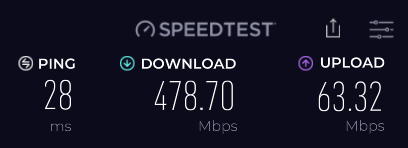
Update – between a little positioning of my 5G incoming router and mounting the GL-BE6500 vertically on the living room wall, about 5 metres or so from my office (and around a corner – thick breezeblock wall), SpeedTest on my PC (wireless 5Ghz connection) in the office is now showing the following:
And now another update – this one also ties up to a blog entry of mine in which I discussed issues between 2.4Ghz WiFi and USB 3 – they interfere with each other and I totally forgot about that… after getting this new router set up and with my HA box _ monitor + keyboard in front of it on a shelf, all seemed well, then I got the brilliant idea of moving my HA box etc into the cupboard which houses my main Flint router… I could do that because of my JetKVM KVM which was sitting doing nothing. Why not get rid of HA’s monitor and hide the lot in a cupboard, I thought. Good idea but as soon as I did that, I started to see issues on the USB-connected SSD next to my HA box. To clarify, this is an aside, the new router is working just fine. However my older FLINT was until last night providing both 2.4Ghz WiFi and 5Ghz Wifi…. so, I turned both of those off and instead set up the new router to provide those WiFi access points – but it seems to have made no difference to the USB on the HA box.
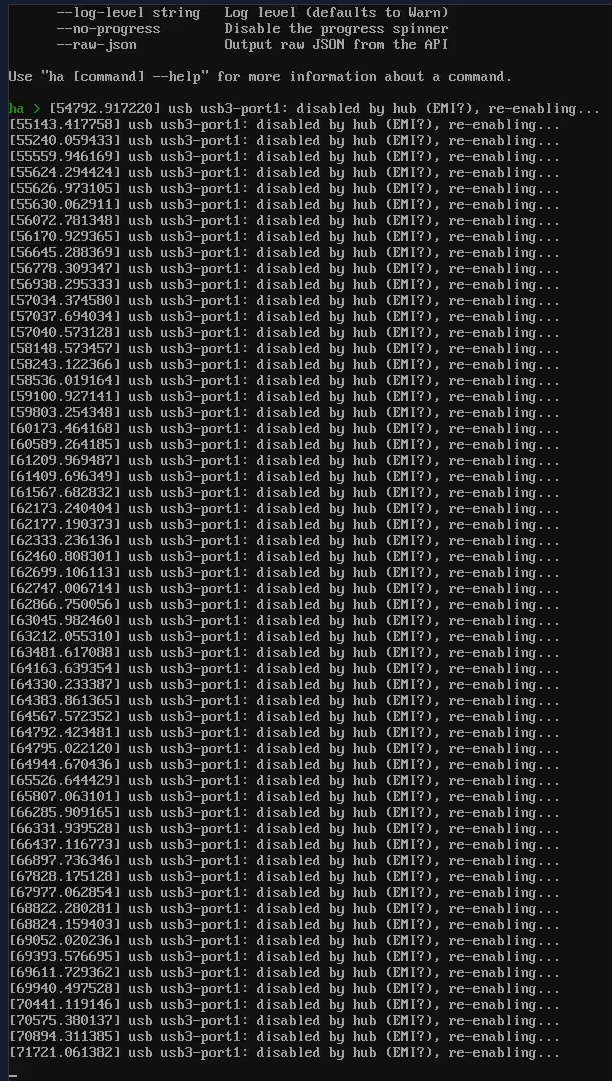
Not such a good idea after all – so why is my USB on the HA mini-PC acting up after moving it into a cupboard with my original Flint?
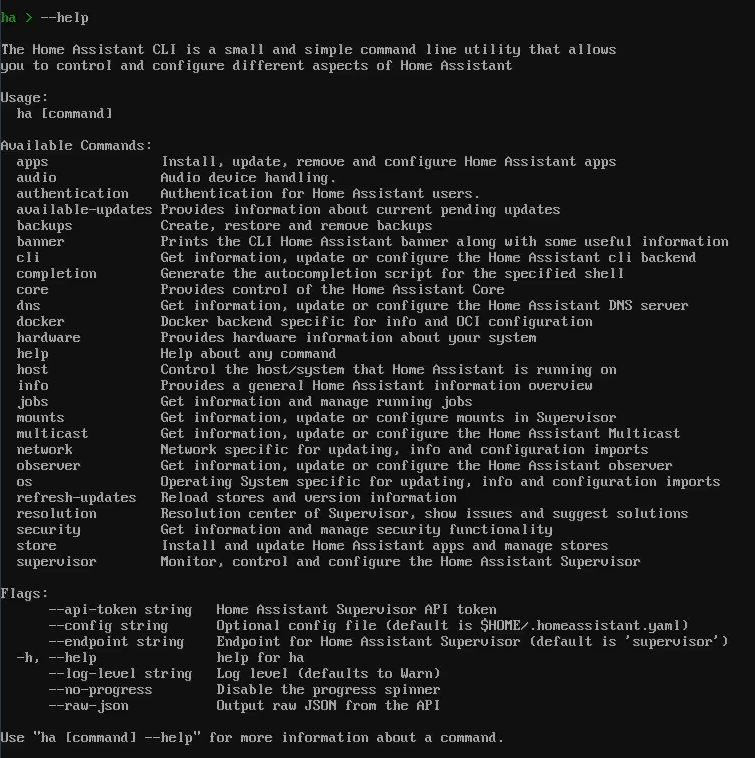
I can only say that the SSD on the HA box is working perfectly, last night’s nightly backup is fine… and the only other USB used on the HA box is for JetKVM and that’s working… simply pressing ENTER on my PC produces THIS.. As you can see below, the keyboard interface via JetKVM to HA is just fine.
For now, this remains a mystery – but that brings me back to why I started this part of the entry… in the process of messing with WiFi on the Flint 3e, I discovered a NEW WiFi section I’d never seen before: Normally you’d see 2.4Ghz Wifi and 5Ghz WiFi settings on these routers…
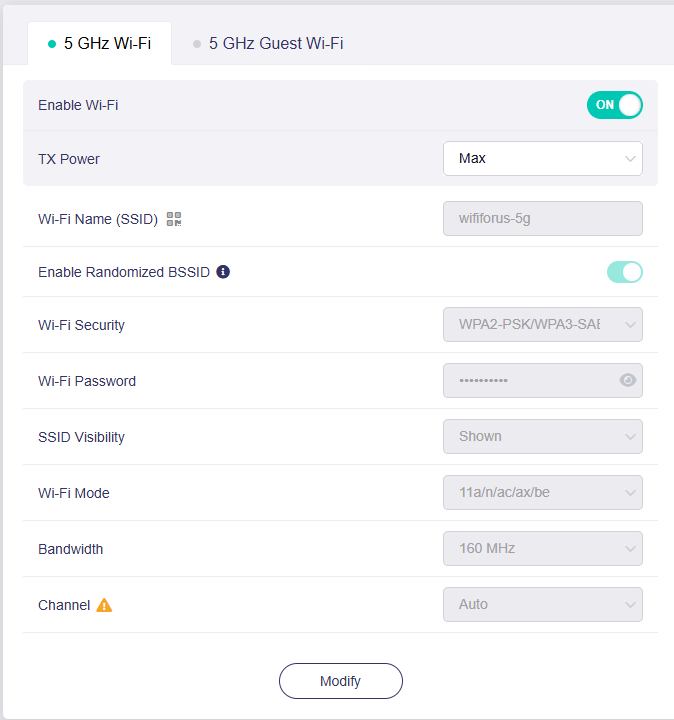
See the main 5Ghz WiFi and guest 5Ghz WiFi above? There’s an identical section for 2.4Ghz WiFi. That’s been the same for every GL-iNet router I’ve ever had. But NOW on this WiFi 7 router, I see a new section I’ve never come across before!!!
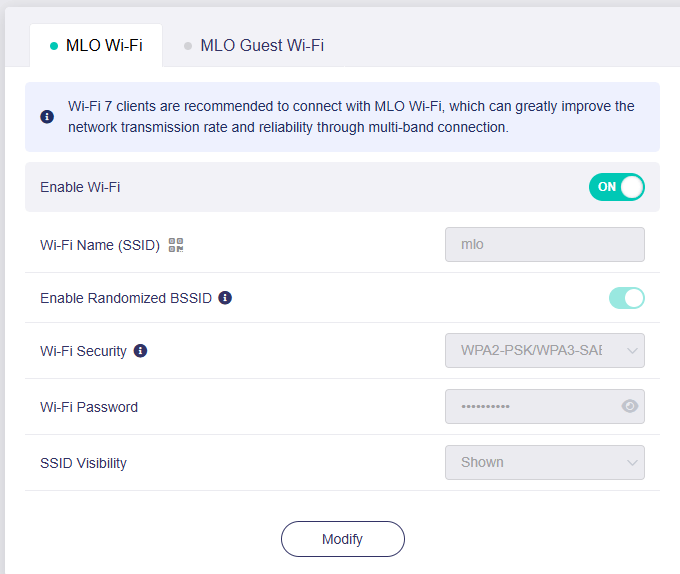
Until last night I’d never come across such a section “MLO” but then this is my first WiFi 7 router.. so I quickly went off to ChatGPT to see what that was all about… but first – I’ve been playing with some typical WiFi smart lights and one – a ??Meross – simply wasn’t pairing up when I told it to use my normal WiFi 6 connection – so I tried MLO instead – perfect – no idea why but MLO seems to work better on several devices even though they can’t possibly be WiFi 7 compatible. Anyway….
I’ll let ChatGPT finish this off – all the info below is what ChatGPT sent to me – I just hope the formatting works in WordPress…
MLO Wi-Fi means Multi-Link Operation. It is a feature introduced with Wi‑Fi 7.
In simple terms, it lets a device use multiple Wi-Fi bands or channels at the same time, instead of connecting on just one.
How Wi-Fi normally works
Traditional Wi-Fi (including Wi‑Fi 6) connects a device to one band at a time:
- 2.4 GHz – longer range but slower
- 5 GHz – faster but shorter range
- 6 GHz – very fast but shortest range
Even if your router has several bands, your device usually picks only one.
What MLO changes
With MLO, a device can use two or more bands simultaneously.
Example:
- Your laptop connects to 5 GHz + 6 GHz at the same time.
- Data is split across both links.
This can provide:
1. Higher speed
Bandwidth from multiple channels can combine.
2. Lower latency
Traffic can take whichever link is currently fastest.
3. Better reliability
If one band gets interference, the data can instantly use another.
Simple analogy
Think of normal Wi-Fi like a single-lane road.
MLO is like using two or three roads at the same time to reach the destination faster and avoid traffic.
Hardware requirements
MLO only works if both sides support it:
- Router: must support Wi‑Fi 7
- Client device: laptop/phone must also support Wi-Fi 7
If either side doesn’t support MLO, it behaves like normal Wi-Fi.
Example relevant to your setup
Your GL.iNet Flint 3E router supports Wi-Fi 7 features including MLO.
[Inference] Whether you actually benefit from MLO depends on whether your phones, laptops, or IoT devices also have Wi-Fi 7 radios.
Most current devices (especially IoT gear like Home Assistant sensors) still use Wi-Fi 4/5/6, so they won’t use MLO.
✅ Summary:
MLO allows Wi-Fi devices to send and receive data over multiple Wi-Fi bands simultaneously, increasing speed, reliability, and reducing latency.
If you’d like, I can also explain the three different types of MLO (STR, EMLSR, and MLSR)—which clarifies why some Wi-Fi 7 routers advertise it but don’t deliver the full performance.
Multi-Link Operation (MLO) in Wi‑Fi 7 can work in three different modes. They mainly differ in how simultaneously the radio links operate and how many radios the device has.
1. STR – Simultaneous Transmit and Receive
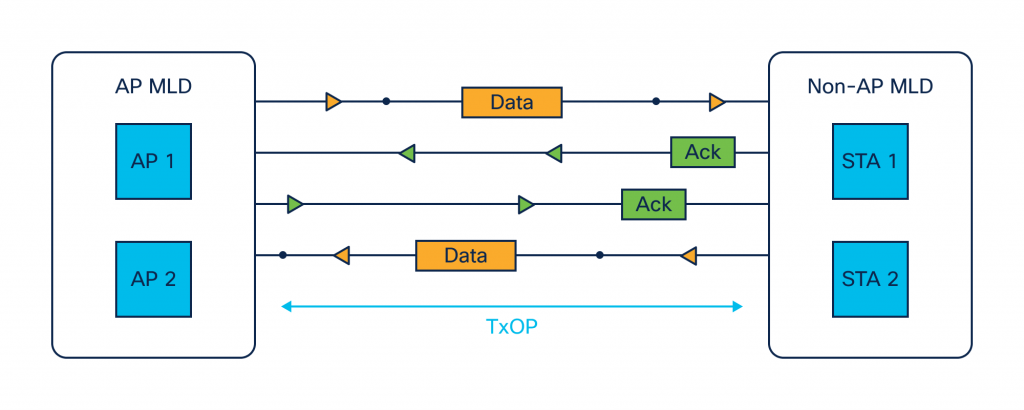
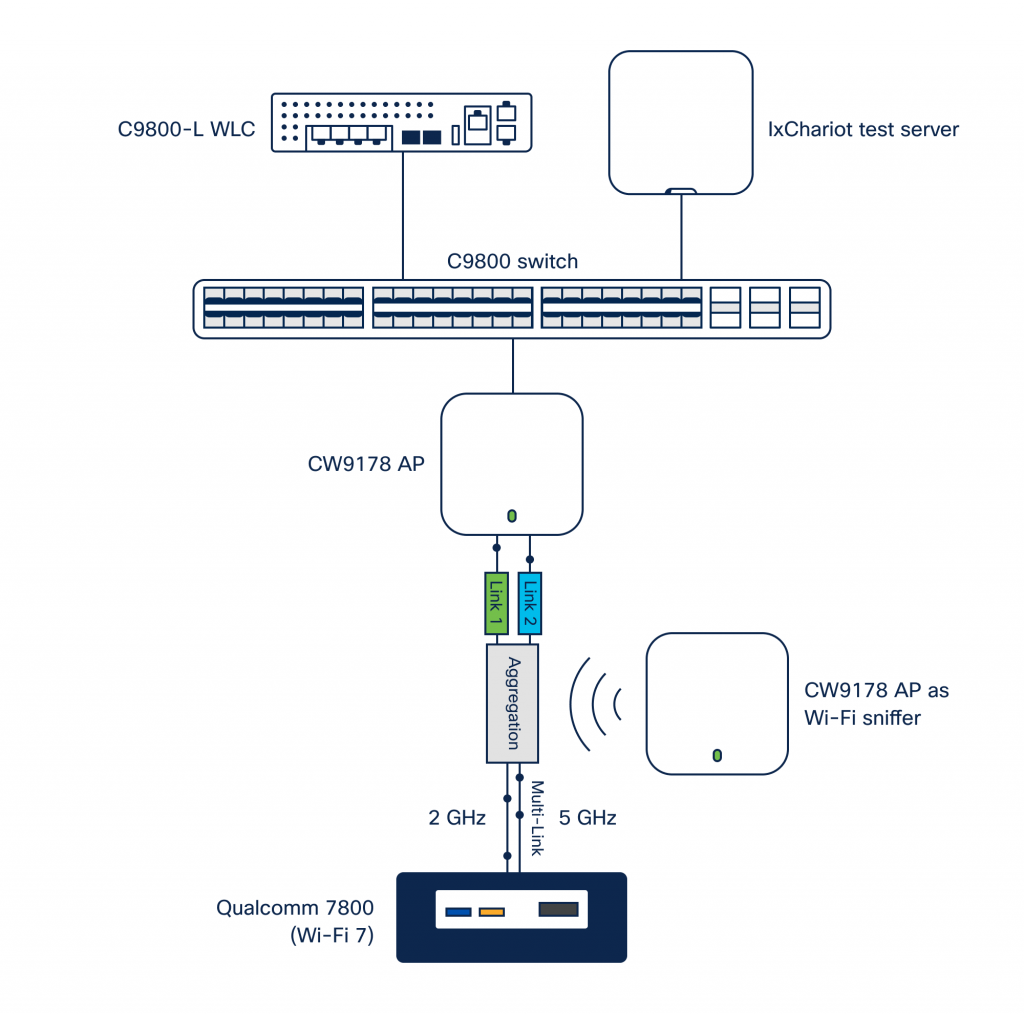

STR (Simultaneous Transmit/Receive) is the full-performance version of MLO.
How it works:
- The device has multiple independent radios.
- It can transmit and receive on different bands at the same time.
Example:
- Router sends packets on 5 GHz
- At the same moment it also sends packets on 6 GHz
Benefits:
- Maximum throughput
- Very low latency
- No waiting between bands
[Inference] This is the mode that delivers the huge “Wi-Fi 7 multi-gigabit speed” numbers seen in marketing.
Hardware requirement:
- Separate radios and antennas per band.
2. EMLSR – Enhanced Multi-Link Single Radio
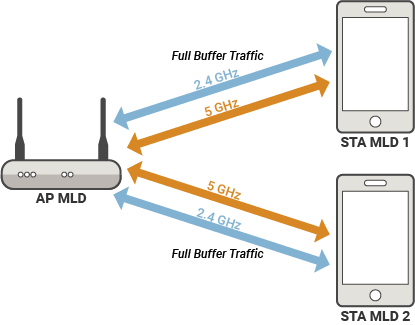

EMLSR stands for Enhanced Multi-Link Single Radio.
How it works:
- Device has one main radio.
- It can switch between bands extremely quickly.
Example:
- Send packet on 6 GHz
- Instantly switch to 5 GHz
- Then switch back again.
Benefits:
- Better reliability
- Some latency improvement
- Lower cost hardware
Limitation:
- Not truly simultaneous.
[Inference] Many early Wi-Fi 7 phones and cheaper devices use this approach because it needs fewer radio chains.
3. MLSR – Multi-Link Single Radio
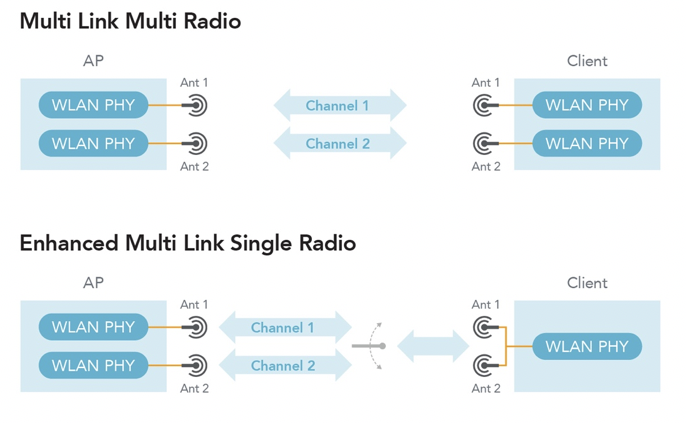

MLSR is the simplest form.
How it works:
- Device can associate with multiple bands
- But uses only one at a time.
Benefits:
- Faster fallback if interference appears
- Slight reliability improvement
Limitations:
- No speed increase
- No true parallel traffic
[Inference] This mode exists mainly for compatibility and power saving in small devices.
Why this matters with Wi-Fi 7 routers
Routers such as the GL.iNet Flint 3E advertise MLO support, but the actual performance depends on the client device.
Examples:
| Device type | Likely MLO mode |
|---|---|
| High-end laptop Wi-Fi 7 card | STR |
| Modern phone Wi-Fi 7 | EMLSR |
| Cheap IoT Wi-Fi 7 device | MLSR |
Your Home-Assistant-type devices (ESP chips, smart plugs, etc.) generally use Wi-Fi 4 or Wi-Fi 5, so they won’t use MLO at all.
✅ Short summary
| Mode | Radios | Simultaneous links | Performance |
|---|---|---|---|
| STR | Multiple | Yes | Best |
| EMLSR | Mostly one | Rapid switching | Medium |
| MLSR | One | No | Minimal benefit |
If you’re interested, I can also explain the slightly sneaky trick some router manufacturers use with MLO marketing that makes the advertised “20-30 Gbps Wi-Fi 7 speeds” almost impossible in real homes. It’s quite interesting.
Router manufacturers often advertise very large Wi-Fi 7 speeds (sometimes 20–30 Gbps or more). The reason those numbers look impressive is mostly due to how they are calculated, not because a single device in a normal home will actually reach them.
Below are the main reasons.
1. The speed number is the sum of all bands
A Wi-Fi router normally has several radios.
Typical Wi-Fi 7 router example:
| Band | Theoretical link rate |
|---|---|
| 2.4 GHz | ~1–2 Gbps |
| 5 GHz | ~8–10 Gbps |
| 6 GHz | ~10–12 Gbps |
Manufacturers add them together.
Example marketing number:
2.4 GHz  = 1.4 Gbps
5 GHz    = 8.6 Gbps
6 GHz    = 11.5 Gbps
--------------------
Advertised speed ≈ 21.5 Gbps
[Inference] No single device normally uses all of that capacity simultaneously, so one laptop will not see 21 Gbps.
2. Maximum speeds require perfect radio conditions
The highest Wi-Fi rates assume:
- Very short distance (often within a few metres)
- No interference
- Wide channels (320 MHz)
- Highest modulation (4096-QAM)
- Multiple antennas (4×4 or more)
[Inference] In real homes, walls, neighbours’ networks, and reflections reduce the usable modulation and channel width.
3. Client devices usually have fewer antennas
Many Wi-Fi routers are 4×4 radios (four spatial streams).
Typical devices:
| Device | Spatial streams |
|---|---|
| Phone | 2×2 |
| Laptop | 2×2 |
| High-end laptop card | sometimes 3×3 or 4×4 |
Because Wi-Fi speed scales with spatial streams:
[Inference] A phone often gets half or less of the router’s maximum capability.
4. MLO doesn’t always double speed
As discussed earlier, Multi-Link Operation (MLO) can combine bands.
However:
- Some devices use EMLSR, not full STR
- Traffic may still favour one band most of the time
- Power limits reduce simultaneous transmit power
[Inference] MLO often improves latency and reliability more than raw speed.
5. Internet speed is usually the real limit
Even if Wi-Fi can move several gigabits, many homes have:
- 300 Mbps
- 600 Mbps
- 1 Gbps fibre
So the internet connection becomes the bottleneck long before Wi-Fi.
Example using your router
You mentioned earlier you have the GL.iNet Flint 3E.
It’s advertised around 19 Gbps class Wi-Fi.
[Inference] In a realistic setup you might see something like:
| Device | Realistic speed |
|---|---|
| Wi-Fi 7 laptop near router | 2–4 Gbps |
| Wi-Fi 6 device | 800 Mbps – 1.5 Gbps |
| Phone in another room | 300–800 Mbps |
| IoT device | 20–100 Mbps |
Those numbers are still very good—just far below the marketing total.
✅ The key takeaway
“20 Gbps Wi-Fi router” usually means:
the total capacity of all radios combined, not the speed any single device will experience.
If you like, I can also show you a very useful hidden advantage of Wi-Fi 7 and MLO that does help smart homes and Home Assistant setups, even when devices are not Wi-Fi 7. It’s something most reviews never mention.
One less obvious advantage of Wi-Fi 7 routers is that they can make older devices work better, even if those devices don’t support Wi-Fi 7 at all.
This matters for setups like Home Assistant with lots of small devices.
1. Device congestion is reduced
Older routers often have many devices competing for one radio band.
Typical smart-home devices:
- ESP8266 / ESP32 sensors
- smart plugs
- cameras
- thermostats
- phones and laptops
Most of these use 2.4 GHz.
[Inference] When dozens of devices share the same band, they must take turns transmitting, which increases latency and packet retries.
Wi-Fi 7 routers help by spreading load across radios:
Example layout:
| Band | Typical devices |
|---|---|
| 2.4 GHz | IoT devices |
| 5 GHz | laptops / TVs |
| 6 GHz | new phones or PCs |
That separation means your 2.4 GHz automation gear gets less interference from heavy devices.
2. Better airtime scheduling
Wi-Fi 7 improves how routers schedule transmissions.
[Inference] The router can allocate shorter and more efficient transmission slots for low-bandwidth devices.
For smart-home devices this means:
- fewer delays when sending MQTT updates
- fewer dropped packets
- more responsive automations
3. Faster roaming between access points
If you run multiple access points or mesh nodes:
- newer Wi-Fi 7 systems improve client steering
- devices move between nodes more smoothly
[Inference] This helps phones or tablets controlling Home Assistant when walking around the house.
4. Reduced latency spikes
MLO allows the router to send traffic over whichever band is currently least busy.
Even if a device itself is only on one band:
[Inference] background traffic from other devices can be moved elsewhere, which reduces contention on that band.
5. Better coexistence with Zigbee smart homes
You mentioned previously that you run Zigbee2MQTT with Home Assistant.
Zigbee uses 2.4 GHz, the same spectrum as Wi-Fi.
A modern router can:
- keep high-bandwidth traffic on 5 GHz or 6 GHz
- reduce heavy Wi-Fi use on 2.4 GHz
[Inference] This can reduce interference with Zigbee networks, which improves device reliability.
✅ In practice
Even if none of your devices support Wi-Fi 7 yet, a good Wi-Fi 7 router can still improve:
- smart-home reliability
- IoT response time
- Zigbee coexistence
- overall network congestion
Since you run Home Assistant, Zigbee2MQTT, ESP devices, and a Flint-series router, there’s one very useful Wi-Fi setting that can noticeably improve IoT reliability (especially ESP8266 devices).
If you want, I can show you the exact router settings many people miss that stop smart devices randomly dropping offline.
For IoT devices (ESP8266 / ESP32 / smart plugs / sensors) the most common reliability problems come from Wi-Fi features designed for phones and laptops rather than simple devices. Adjusting a few router settings often makes a noticeable difference.
You mentioned you are using a GL.iNet Flint 3E, so the options below should exist somewhere in its wireless settings.
1. Give 2.4 GHz its own SSID
Many routers ship with “Smart Connect” or band steering enabled.
Example default:
HomeWiFi
 ├── 2.4 GHz
 ├── 5 GHz
 └── 6 GHz
IoT devices often struggle with this.
Better approach:
HomeWiFi_24
HomeWiFi_5
HomeWiFi_6
Connect all IoT devices to HomeWiFi_24 only.
Why it helps
[Inference] Some IoT firmware cannot correctly handle band-steering responses from the router and may disconnect or fail to join.
2. Fix the 2.4 GHz channel width to 20 MHz
Many routers default to 20/40 MHz auto.
Set:
Channel width: 20 MHz
Why
- ESP8266 devices expect 20 MHz
- 40 MHz increases interference
- Zigbee also lives in the same spectrum
Since you run Zigbee2MQTT, this is especially helpful.
3. Choose a fixed channel (1, 6, or 11)
Do not leave the channel on auto if you have many IoT devices.
Typical stable choices:
Channel 1
Channel 6
Channel 11
Pick the one furthest from your Zigbee channel.
Example:
| Zigbee channel | Good Wi-Fi choice |
|---|---|
| 11 | Wi-Fi 1 |
| 15 | Wi-Fi 1 or 11 |
| 20 | Wi-Fi 6 |
| 25 | Wi-Fi 1 |
[Inference] This reduces packet retries caused by spectrum overlap.
4. Disable Wi-Fi power-saving features for 2.4 GHz
Look for options like:
Target Wake Time (TWT)
U-APSD
Power Save
These are useful for phones but sometimes break cheap IoT radios.
[Inference] ESP chips may miss wake windows and appear offline.
5. Disable WPA3 on the IoT network
Many IoT devices still struggle with WPA3.
Use:
WPA2-PSK (AES)
or
WPA2/WPA3 mixed
But pure WPA3 can cause connection failures.
6. Reduce minimum RSSI or disassociation thresholds
Some routers drop devices with weak signal.
Look for settings like:
Minimum RSSI
Disassociate low signal clients
Disable them for IoT.
IoT devices often have very small antennas.
7. Optional but useful: create an IoT VLAN
[Inference] This improves security and stability.
Example layout:
Main LAN
IoT VLAN
Guest Wi-Fi
IoT devices:
- internet access
- access to Home Assistant
- nothing else
Settings summary for smart homes
| Setting | Recommended |
|---|---|
| Separate SSID | Yes |
| 2.4 GHz width | 20 MHz |
| Channel | Fixed (1/6/11) |
| Encryption | WPA2 |
| Band steering | Off |
| TWT / power save | Off for IoT |
💡 One more thing specific to your setup
You run:
- Home Assistant
- Zigbee2MQTT
- ESP-based devices
There is a very specific Wi-Fi/Zigbee channel combination that dramatically reduces interference in smart homes.
If you’d like, I can show you the “sweet spot” channel layout many Home Assistant users use that keeps both Wi-Fi and Zigbee stable. It’s surprisingly effective.