
I hope that title is obvious. Probably not. I have put up three power sockets in my garage and while we are on temporary power, I only want to use one at any time (so as not to overload the battery power unit or for that matter the generator – and this has to be fool-proof. These are Sonoff smart sockets and I have them all connected to the one power outlet, sitting side by side. Each one has a button which you can manually use to turn the power on and off (short press in both cases). You can, of course, also use the mobile app or PC to turn them on and off but again I wanted to make sure only one could be on at any time. I started with three independent buttons that could be turned on and off In Home Assistant.
I started to apply logic and then I asked ChatGPT and it came up with a better way of doing it than my own attempts – who says AI can’t be creative. After a wasted hour or two caused by Sonoff devices identifying themselves slightly incorrectly in HA, we came up with a solution.
So firstly here are the three actual sockets and the controls above them. Ignore the rather inadequate wiring right now – about to be upgraded.
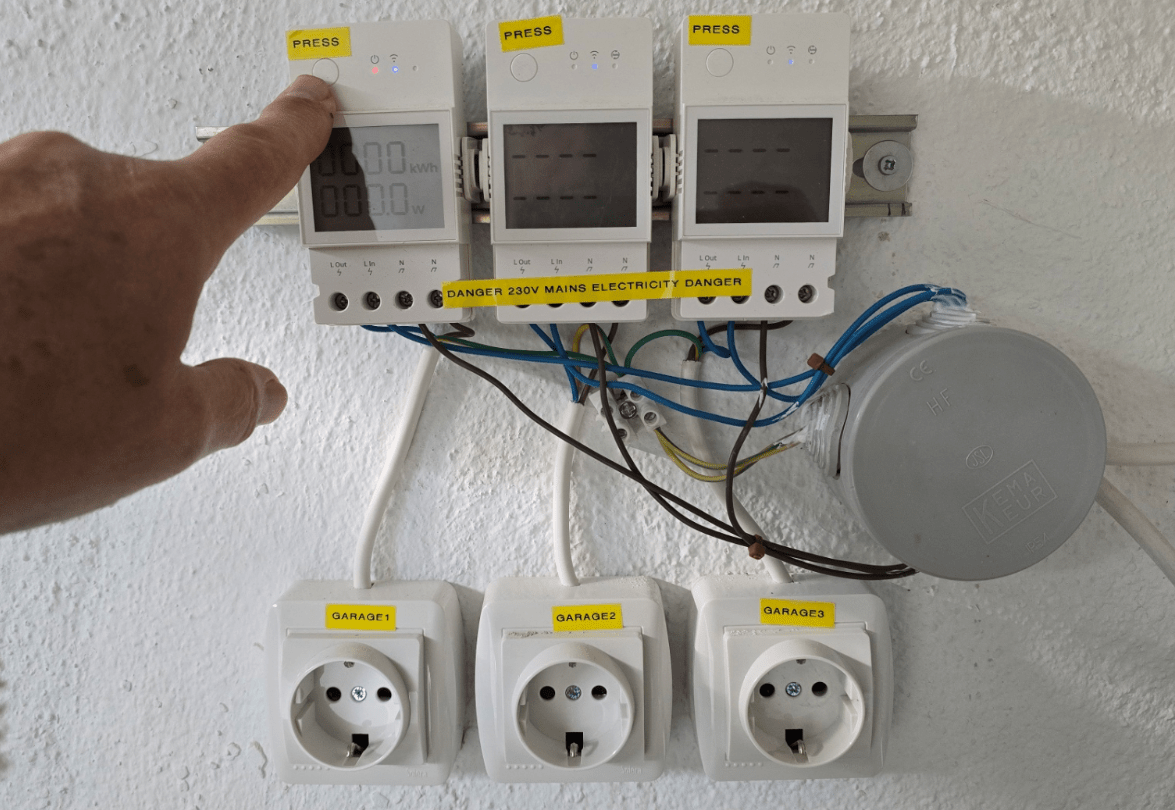
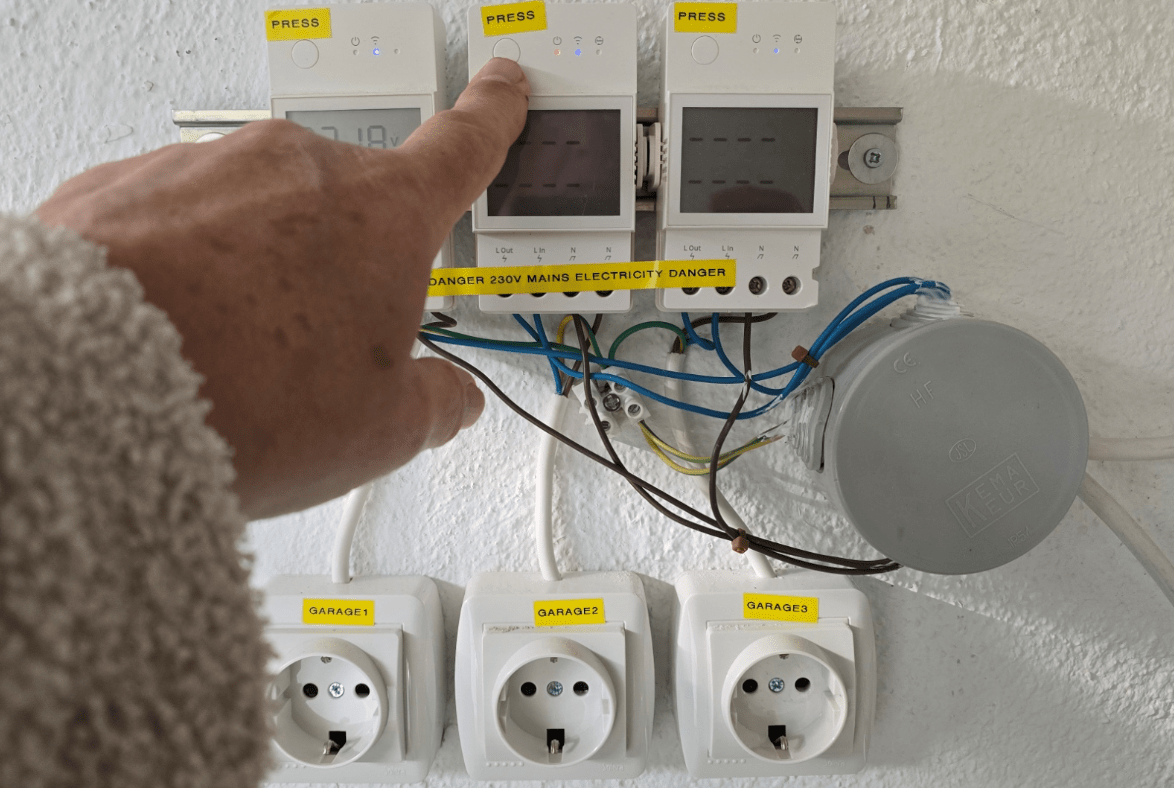
Note in the photo above the rather dim red light on the first Sonoff unit just next to my index finger… In the second photo you’ll note I’m pressing the button on the SECOND Sonoff unit – It’s red light is on and the red light on the first unit has gone off automatically. If I turn the second unit off, that’s all that happens of course, so options are all-off, first, second or third unit on but only one at a time. Foolproof.
Now take a look at the HA screen which appears on my PC and mobile phone… Note that the screen is replicating the state I left the outputs when pressing the real buttons.
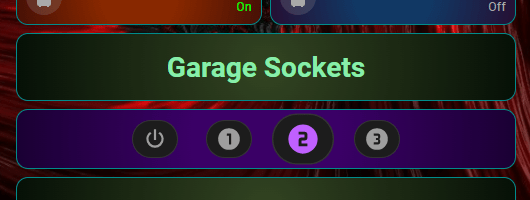
Note above, the 4 buttons in one custom:mod-card which contains 4 custom cards..
Within that, I’m using four custom:mushroom-chips-cards. Again only one button can be pushed at once and the whole thing changes colour as needed to make the output state blindingly obvious. This takes the one custom card, 2 automations and a helper.
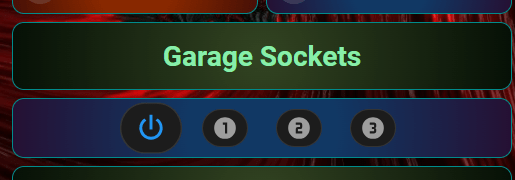
Firstly the card…. it looks more complicated than it is – that’s down to card-mod styling and a little animation in the card to make the active button larger than the others. Note the change below with all sockets off – you could of course vary the number of outputs to suit your needs.
Here’s the code for each part – the card, the helper and the two automations – and remember to restart Home Assistant or at least refresh the automations before trying this or a variation out.
type: custom:mod-card
card_mod:
  style: |
    ha-card {
      border: 1px solid darkcyan;
      border-radius: 12px;
      padding: 10px;
      text-align: center;

      {% set s = states('input_select.garage_power') %}

      {% if s == 'garage1' %}
        background: radial-gradient(circle, #003300 30%, #001100);
      {% elif s == 'garage2' %}
        background: radial-gradient(circle, #3a0066 30%, #1a0033);
      {% elif s == 'garage3' %}
        background: radial-gradient(circle, #660000 30%, #220000);
      {% else %}
        background: radial-gradient(circle, #113864 30%, #261033);
      {% endif %}
    }
card:
  type: custom:mushroom-chips-card
  alignment: center
  card_mod:
    style: |
      mushroom-template-chip {
        --chip-icon-size: 26px;
        margin-left: 10px;
        margin-right: 10px;
        transition: transform 0.15s ease;
      }
  chips:
    - type: template
      icon: mdi:power
      icon_color: |
        {% if is_state('input_select.garage_power','Off') %}
          blue
        {% else %}
          grey
        {% endif %}
      tap_action:
        action: call-service
        service: input_select.select_option
        data:
          entity_id: input_select.garage_power
          option: "Off"
      card_mod:
        style: |
          ha-card {
            {% if is_state('input_select.garage_power','Off') %}
              transform: scale(1.35);
            {% else %}
              transform: scale(1.0);
            {% endif %}
          }
    - type: template
      icon: mdi:numeric-1-circle
      icon_color: |
        {% if is_state('input_select.garage_power','garage1') %}
          green
        {% else %}
          grey
        {% endif %}
      tap_action:
        action: call-service
        service: input_select.select_option
        data:
          entity_id: input_select.garage_power
          option: garage1
      card_mod:
        style: |
          ha-card {
            {% if is_state('input_select.garage_power','garage1') %}
              transform: scale(1.35);
            {% else %}
              transform: scale(1.0);
            {% endif %}
          }
    - type: template
      icon: mdi:numeric-2-circle
      icon_color: |
        {% if is_state('input_select.garage_power','garage2') %}
          #c060ff
        {% else %}
          grey
        {% endif %}
      tap_action:
        action: call-service
        service: input_select.select_option
        data:
          entity_id: input_select.garage_power
          option: garage2
      card_mod:
        style: |
          ha-card {
            {% if is_state('input_select.garage_power','garage2') %}
              transform: scale(1.35);
            {% else %}
              transform: scale(1.0);
            {% endif %}
          }
    - type: template
      icon: mdi:numeric-3-circle
      icon_color: |
        {% if is_state('input_select.garage_power','garage3') %}
          red
        {% else %}
          grey
        {% endif %}
      tap_action:
        action: call-service
        service: input_select.select_option
        data:
          entity_id: input_select.garage_power
          option: garage3
      card_mod:
        style: |
          ha-card {
            {% if is_state('input_select.garage_power','garage3') %}
              transform: scale(1.35);
            {% else %}
              transform: scale(1.0);
            {% endif %}
          }
And now, the helper… shame I can’t show code for the helper – it seems they are stored in JSON (not YAML like everything else….) but the picture should show exactly what my helper does – nothing is hidden or missed out here. I’m assuming you have card-mod installed in HA and the relevant custom card – I highly recommend having these available as I find standard HA tiles very limiting.
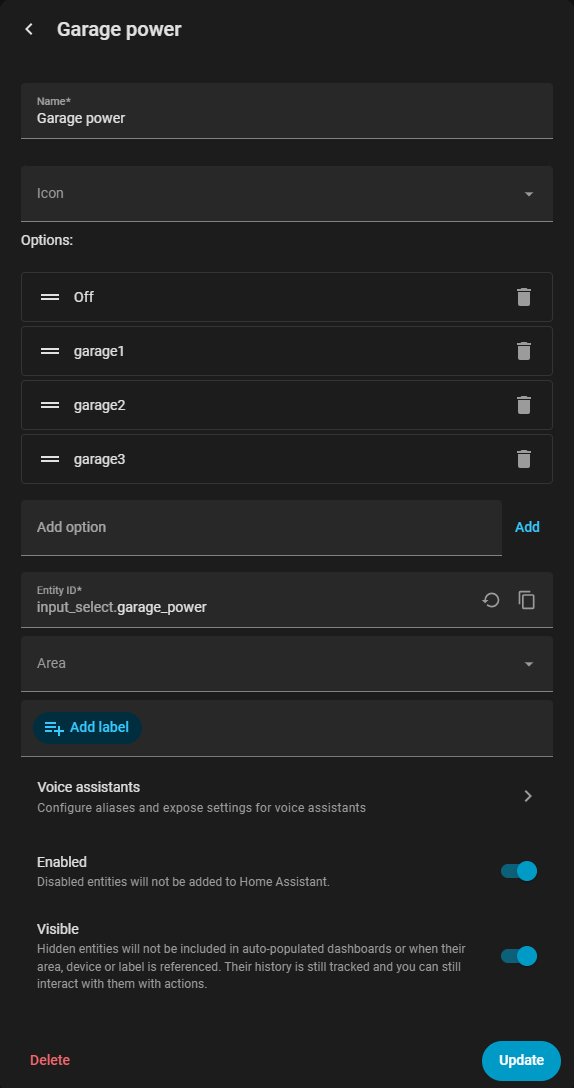
Be careful with spacing and uppercase/lowercase… this must match the automations and the card exactly.
and finally the two automations…
alias: Garage selector controls sockets
triggers:
  - entity_id: input_select.garage_power
    trigger: state
actions:
  - target:
      entity_id:
        - switch.sonoff_10016fdf31
        - switch.sonoff_100172063b
        - switch.sonoff_1001720e47
    action: switch.turn_off
  - choose:
      - conditions:
          - condition: template
            value_template: "{{ trigger.to_state.state == 'garage1' }}"
        sequence:
          - target:
              entity_id: switch.sonoff_10016fdf31
            action: switch.turn_on
      - conditions:
          - condition: template
            value_template: "{{ trigger.to_state.state == 'garage2' }}"
        sequence:
          - target:
              entity_id: switch.sonoff_100172063b
            action: switch.turn_on
      - conditions:
          - condition: template
            value_template: "{{ trigger.to_state.state == 'garage3' }}"
        sequence:
          - target:
              entity_id: switch.sonoff_1001720e47
            action: switch.turn_on
mode: restart
alias: Garage sockets update selector
triggers:
  - entity_id:
      - switch.sonoff_10016fdf31
      - switch.sonoff_100172063b
      - switch.sonoff_1001720e47
    to: "on"
    trigger: state
actions:
  - choose:
      - conditions:
          - condition: template
            value_template: "{{ trigger.entity_id == 'switch.sonoff_10016fdf31' }}"
        sequence:
          - target:
              entity_id:
                - switch.sonoff_100172063b
                - switch.sonoff_1001720e47
            action: switch.turn_off
          - data:
              entity_id: input_select.garage_power
              option: garage1
            action: input_select.select_option
      - conditions:
          - condition: template
            value_template: "{{ trigger.entity_id == 'switch.sonoff_100172063b' }}"
        sequence:
          - target:
              entity_id:
                - switch.sonoff_10016fdf31
                - switch.sonoff_1001720e47
            action: switch.turn_off
          - data:
              entity_id: input_select.garage_power
              option: garage2
            action: input_select.select_option
      - conditions:
          - condition: template
            value_template: "{{ trigger.entity_id == 'switch.sonoff_1001720e47' }}"
        sequence:
          - target:
              entity_id:
                - switch.sonoff_10016fdf31
                - switch.sonoff_100172063b
            action: switch.turn_off
          - data:
              entity_id: input_select.garage_power
              option: garage3
            action: input_select.select_option
mode: restart
If you decide to use this or a variation, take care that WordPress isn’t using any special characters for quotes. Wouldn’t be the first time.
Hi Peter
Have you tried the The Unofficial and Awesome Home Assistant MCP Server (https://github.com/homeassistant-ai/ha-mcp) yet?
It has been an incredible transformation to my HA system. I have had it fix bugs in other peoples github repositories, build dashboards, work out some really complex automation logic. It has been the biggest quality of life improvement on HA. I use it with Claude.AI