
If, like me, you have a home with more than one router, this may interest you. I can’t get broadband as such here, there is only one company in our village that provides fibre and they won’t provide it to our house because they’re useless. Accordingly, I have two choices: Starlink or 5G.
We are fortunate enough to have the village 5G mast within sight of our house. I bought a second hand 5G router from eBay last time I was in the UK and brought it with me to Spain. Imagine my surprise when I plugged it in and realized…that I could get download speeds vastly in excess of those available on Starlink and local fibre.
I’ve written extensively elsewhere on the subject of 5G, so we’re not going to that here, but the router, great as it is, is not WiFi 6 or WiFi 7 and I like to keep up to date.
Accordingly, the 5G router simply feeds my GL-iNet Flint router’s WAN input And the GL-iNet provides my internal 192.168.1.x subnet. That’s fine, but I’ve mounted Flint near the front door because that’s where my UPS system and the 5G router are. That covers the living room, which is quite big, also the outside porch area, and that’s about it.
We live in a rural cave-home and, accordingly, many of the rooms are effectively under rock – Indeed, some of the walls are made of sedimentary rock. As you can imagine, WiFi doesn’t travel too well through that. So just like the situation in my last cavehome, I have multiple routers. That is, I would normally be encouraged to put the routers into repeater mode..
But in fact, I generally use one of the LAN inputs to these routers and put the router in “router mode” (usually the default mode) but (importantly with DHCP turned off so that there is only one DHCP server in the house: my GL-iNet Flint).
I have LOTS of IoT devices which I’ve written about elsewhere and recently noticed that one device in my office simply would not connect to the SSID “myoffice” – sitting on my Comfast router. I spent days getting to the bottom of this. In the end, having discussed this with various friends and my favorite AI, it turned out that this particular router, the one in my office, Had DHCP turned on, meaning that there were two sources of DHCP for my various devices.
Some weren’t bothered, others were. This was a devil to track down. I went into the Comfast router settings and turned DHCP off, made sure that was saved and rebooted the router. On powering up again, DHCP was back on. I had several attempts at sorting this to make sure I wasn’t dreaming. The instructions could not have been clearer: “Select router mode” with a tick box and underneath that, “Turn on/off DHCP” with another tick box.
Except that no matter what I did, it simply wouldn’t work. This led me temporarily to use a cheap Chinese repeater I had lying around the office until I remembered I had an old Mikrotik router which turned out to be a winner – I’ve written about that elsewhere and from time to time, I write about Gl-iNet routers.
Not all Routers Work the Same Way
The router that caused me all the problems was a Comfast CF-WR621AX-V2. The label on the bottom also refers to the router as AX3000. On consulting the oracle, I noted that umpteen users say that Comfast support is not very quick – so I sent the company off a detailed email and 24 hours later – on a Saturday – what SEEMED like a helpful offer suggesting that if no firmware update exists, “we can discuss suitable replacement hardware”.. excited? SURE I was – and then… nothing… eventually the company wrote back to me, partly in chinese.
In the end I stumbles on the answer… I can normally just switch extension routers from their default IP range (often 192.168.0.x) to my own 192.168.1.x and turn off DHCP. This failed on the Comfast. However in one last attempt – I left the router with it’s default 192.168.0.1 range while turning off DHCP. It turns out this put the router into “bridge” mode automatically. I could not access the router control panel in 192.168.1.x but then I twigged – can I access it in it’s original address 192.168.0.1? YES – so I retain control panel access for changing WiFi SSIDs and more, if only on my phone (for now). In this mode, the Comfast allows me to use any of the3 LAN ports as the extension from my main netwok OR the WAN input, leaving me with 3 LAN connectors for general use with my network – as well as the WiFi.
At that point I started digging into what else the Comfast can do. It turns out it’s a dual band normal WiFi 6 router with extras including optional WiFi unification, optional WiFi 5 (2.4 and 5.8Ghz) backup network for the odd older IOT device which doesn’t like WiFi 6 (at least one Aqara device I own, has that issue) and finally a dual band guest network with it’s opwn separate passwords. There are also MESH settings but this would need multiple Comfast routers – I only have the one.
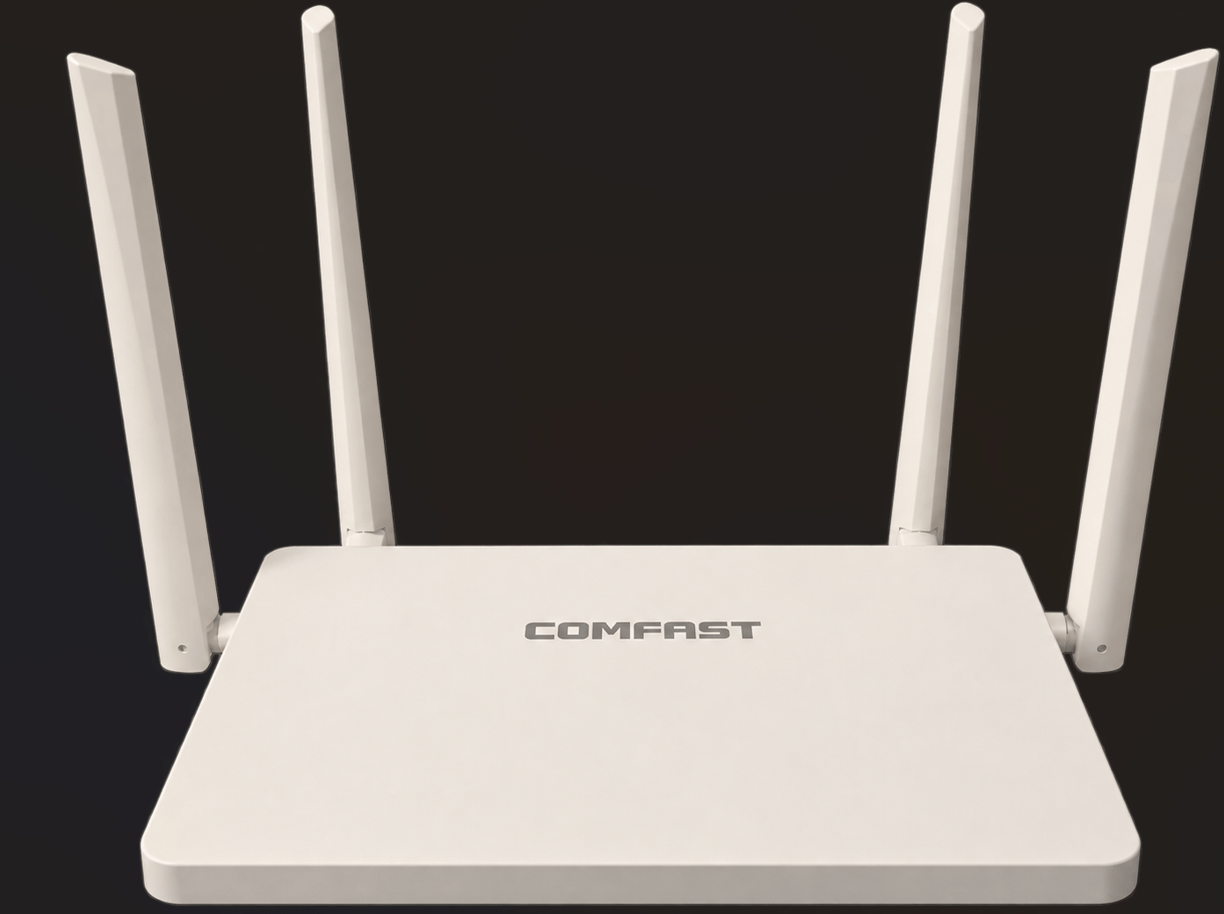
Final word. I changed the base address of the Comfast to 192.168.50.1 (192.168.0.x is very commonly used elsewhere) and once again by using the Comfast to provide WiFi to my phone, I could access it’s control panel on the phone, this time as 192.168.50.1
But to keep life simple, I wanted to access the same control panel on my PC. As that’s not on my 192.168.1.x network, the PC wasn’t having it.
Simple solution reached after ChatGPT sent me around the houses for an hour without properly checking what some complicated commands it was suggesting… this is only tested on 64-bit Windows 11 incidentally…
To add the router’s address to my PC which is 192.168.1.69 – using Windows Powershell as administrator:
route add 192.168.50.1 mask 255.255.255.255 192.168.1.69
and to remove that 192.168.50.1 address:
route delete 192.168.50.1
No rebooting or anything else – just the above – nice and simple.
That add command is not persistent however. To make it survive power cycling..
route -p add 192.168.50.1 mask 255.255.255.255 192.168.1.69